5 Blender Shortcuts That Feel Like Cheating — The Essential Workflow Hacks
Master these battle-tested keyboard shortcuts and cut your modeling time in half. These five shortcuts work in every modern version of Blender.
Blender is incredibly powerful, but it can be slow without the right shortcuts. After testing hundreds of keybinds across thousands of hours, these five shortcuts deliver the biggest efficiency gains. They reduce clicks, speed up workflows, and turn complex tasks into one-tap actions. Whether you’re new to 5 Blender Shortcuts That Feel Like Cheating or a seasoned pro, these shortcuts will transform your workflow.

Want to accelerate your 3D workflow even further? Check out the official Blender keymap documentation for even more shortcuts.
015 Blender Shortcuts That Feel Like Cheating: Shift + A — The Add Menu
This shortcut gives instant access to create any object in Blender. Hold Shift + A anywhere to pull up the add menu for primitives, curves, lights, cameras, and more. No clicking through panels or searching through the toolbar. This works in Object Mode, Edit Mode, and Sculpt Mode, making it the most versatile shortcut in all of Blender.
The moment you press it, a pie menu appears with every creation option. From basic cubes to complex metaballs, everything is one key press away. According to the Blender manual, this is the fastest way to add objects to your scene.
02H / Alt + H — Hide and Unhide
These shortcuts are the ultimate workflow declutterers. Press H to hide selected objects, Shift + H to hide everything except the selected, and Alt + H to unhide all. This is essential for working on complex scenes where you need to focus on specific geometry.
When combined with Alt + Z for x-ray mode, you can see through geometry while hiding distracting elements. Professional modelers use this combination constantly. It’s also crucial for clean screenshots and presentations, as noted in the 3D viewport documentation.
03Ctrl + R — Loop Cut and Slide
Press Ctrl + R to add a loop cut anywhere on your mesh. After pressing it, move your mouse along the edge to position it, then click to confirm. Scroll to add multiple loop cuts at once. This is the fastest way to add detail to any model.
This shortcut alone can save hours compared to manually selecting edges and using the menu system. It works on faces, edges, and allows you to add precise topology exactly where you need it. The official documentation covers this tool in detail.
04Shift + D — Duplicate in Place
Select any object and press Shift + D to duplicate it instantly. The new copy appears immediately, ready to move. This is faster than copying and pasting through menus. Press G immediately after to grab the duplicate in the direction you want.
For even faster workflow, hold Shift + D then immediately press X, Y, or Z to constrain movement to that axis. Combined with the other shortcuts here, you can build complex scenes in minutes.
05F3 — The Search Menu
Press F3 to open the global search menu. Type any command, setting, or tool and execute it instantly. This is Blender’s most powerful shortcut for finding functions buried in menus. From snapping options to render settings, everything is searchable.
This saves countless clicks when you remember a feature but can’t find the menu. Recently used commands appear at the top for even faster access. Professional users rely on this daily for its speed and versatility, as highlighted in blender.org tutorials.
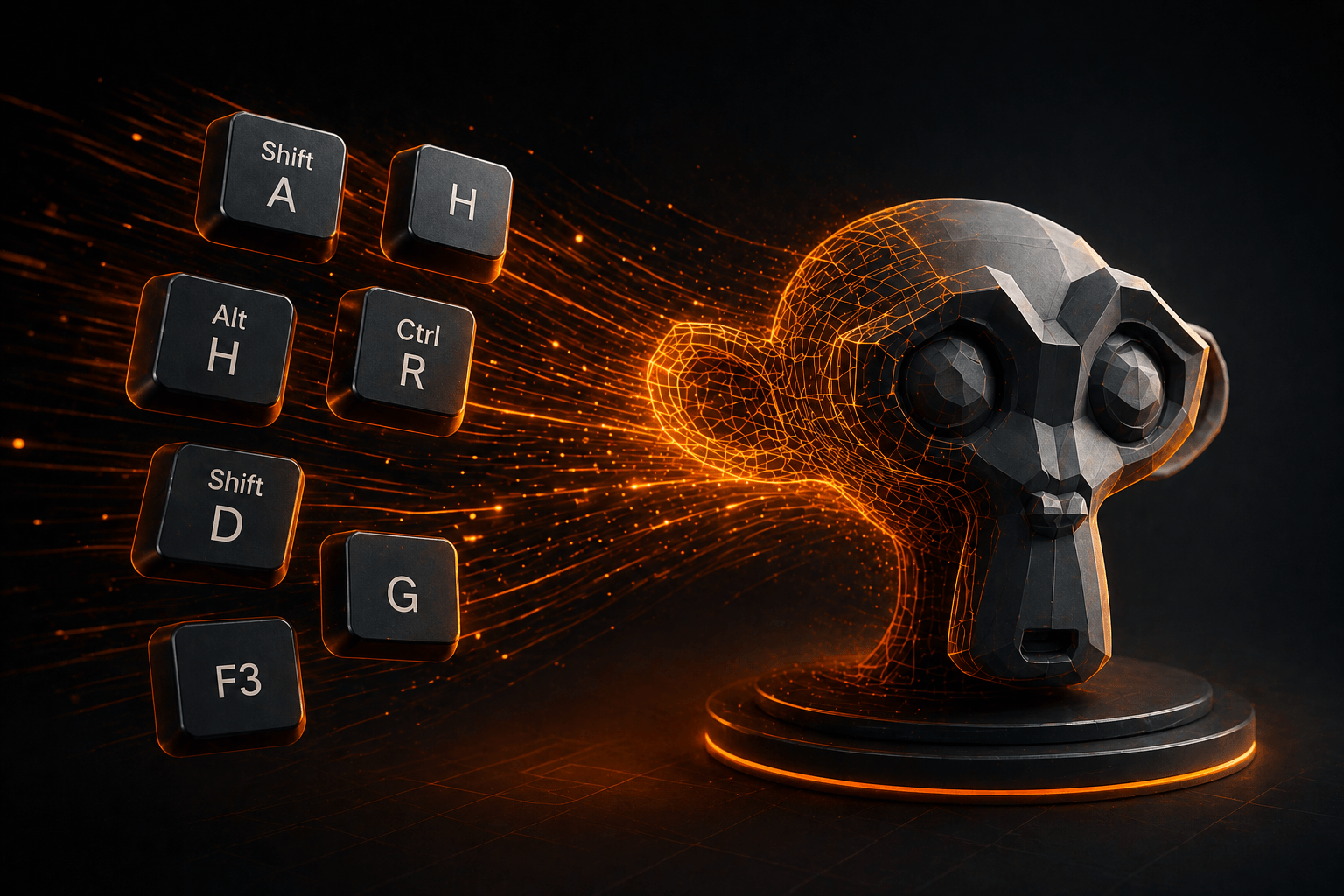
These five Blender shortcuts are essential for anyone serious about 3D modeling. They work in every modern version and beyond, reducing workflow friction and making creation feel effortless. Master them and you’ll feel like you’re cheating the system. These 5 Blender Shortcuts That Feel Like Cheating will dramatically improve your speed.
These shortcuts transform how you work in Blender. Start with Shift + A and build your workflow from there. Master these five and you’ll feel like you’re cheating the system. Visit Becomine.com for more Blender tips and tutorials.